
A public location is a charging site that is openly discoverable and accessible to external users.
This guide explains what it means to configure a location as public, when this setup is appropriate, and how to configure the required settings.
What Does “Public” Mean?
When a location is set to public, it is:
- Visible in charging apps and map services where Spirii shares location (POI) data 👉 here is a list of Spirii's roaming partners
- Discoverable by drivers outside your organisation
- Optionally available for roaming, allowing drivers from other eMSPs to charge at your site
Public locations are suitable for depot owners who:
- Are operationally prepared to share charging capacity with external fleets at all times
- Do not need to approve or restrict who can access the site
- Want maximum visibility and utilisation of their infrastructure
Regulatory Responsibilities for Public Locations
Operating a public charging site comes with regulatory obligations.
At EU level, public charging infrastructure is primarily governed by the Alternative Fuels Infrastructure Regulations (AFIR), which introduces requirements related to:
- Price transparency
- Payment options (e.g. ad-hoc payment)
- Consumer information
Depending on the country, additional national regulations may also apply. As part of the TruckCharge Network, Spirii provides you with guidance and advisory on AFIR compliance. However, the responsibility for ensuring compliance ultimately remains with you as the charge point owner.
How to Configure a Location as Public
To change an existing location to public:
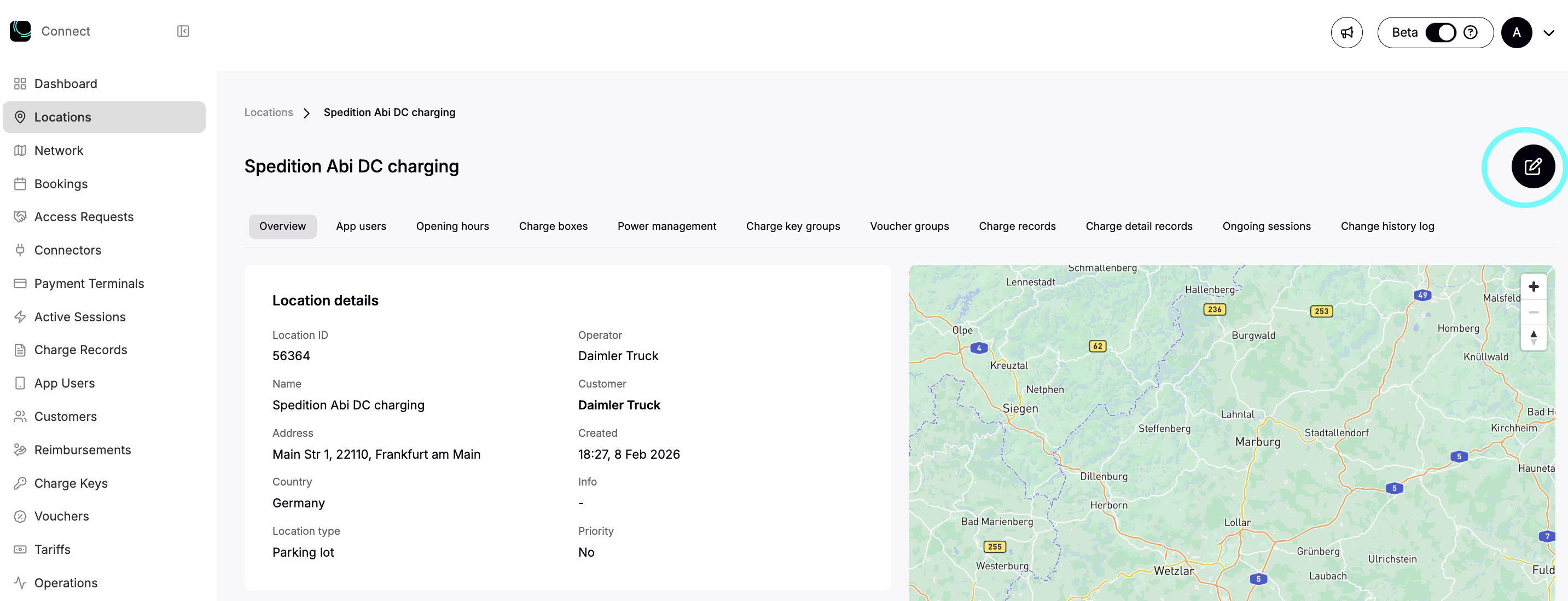
- Open the location
- Click Edit
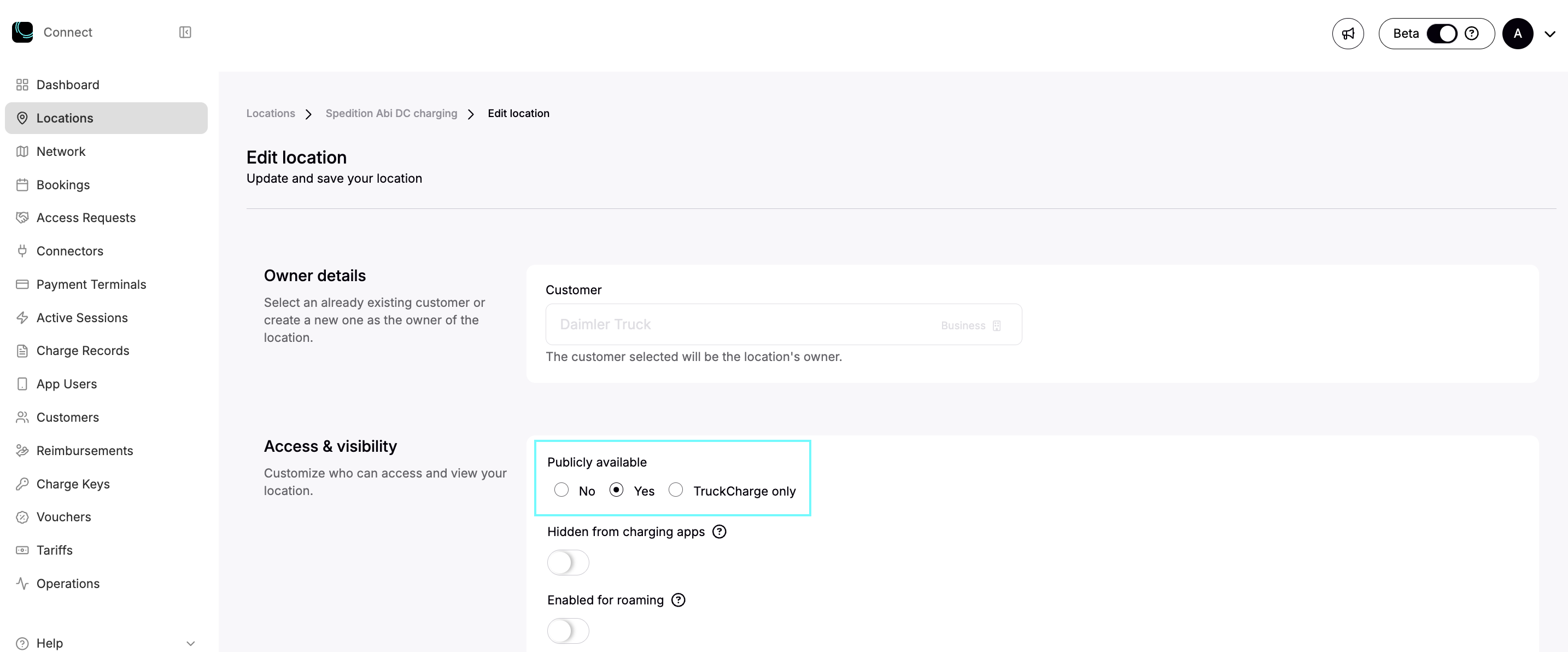
- Under Publicly available, select Yes
- Click Save to apply the changes
This makes the location publicly visible.
Optional: Hide from Charging Apps
If you want:
- The location to be usable by external users but not visible in charging apps
You can enable Hidden from charging apps.
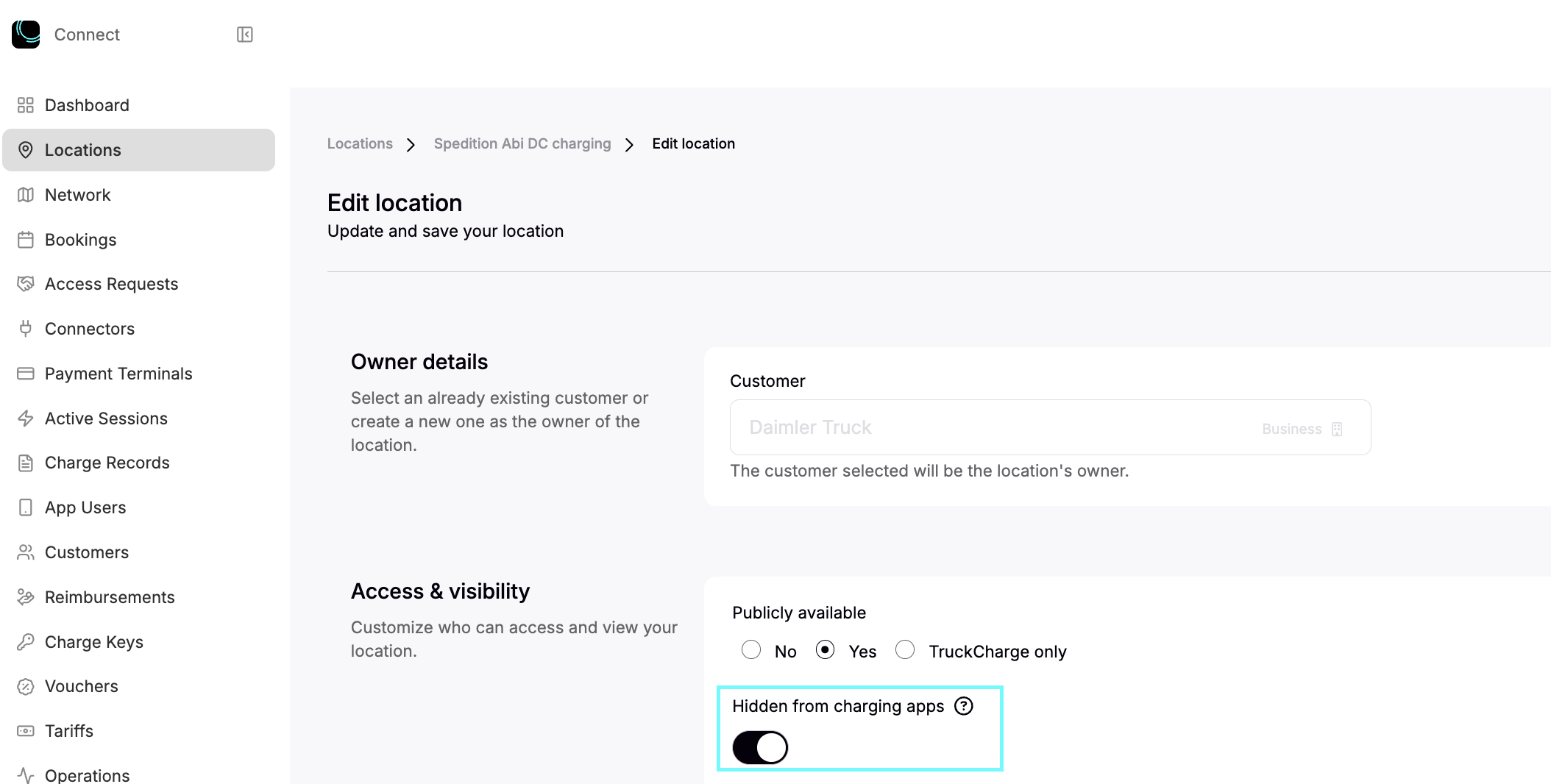
This setting:
- Hides the location from apps managed by Spirii (Spirii Go, TruckCharge, etc.)
- Does not prevent charging if a driver arrives with:
- A valid RFID authorised in the Spirii network, or
- A credit card (for payments through payment terminals)
This option is typically used for sites that allow public access but want to limit passive discovery.
Enabling Roaming for Public Locations
Public locations can optionally be enabled for roaming.
Roaming allows drivers from third-party eMSPs to charge at your site using their own app or RFID.
Example: A driver using the EnBW app finds your charger in their app and starts a charging session at your depot.
To enable roaming:
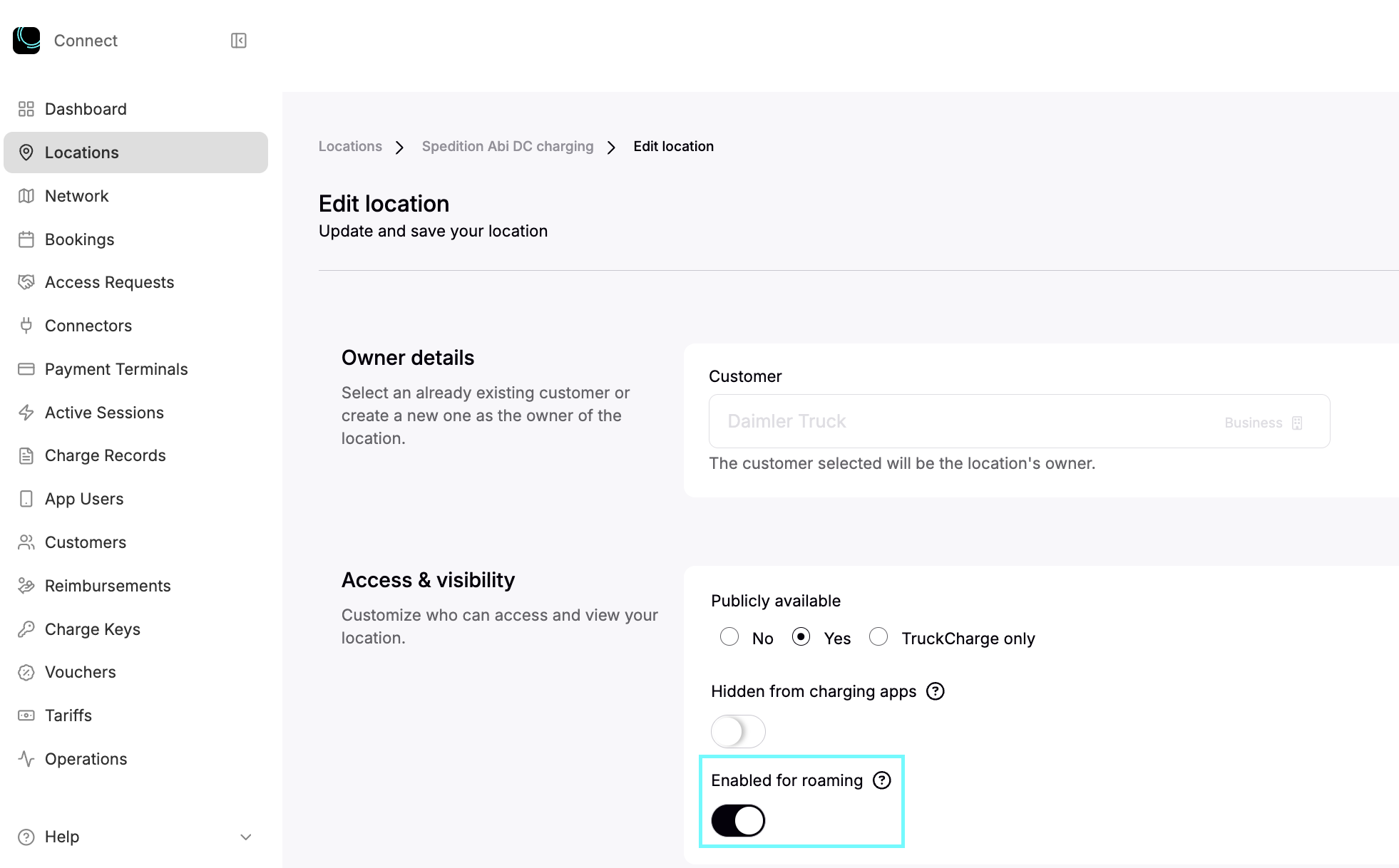
- Toggle Enabled for roaming on
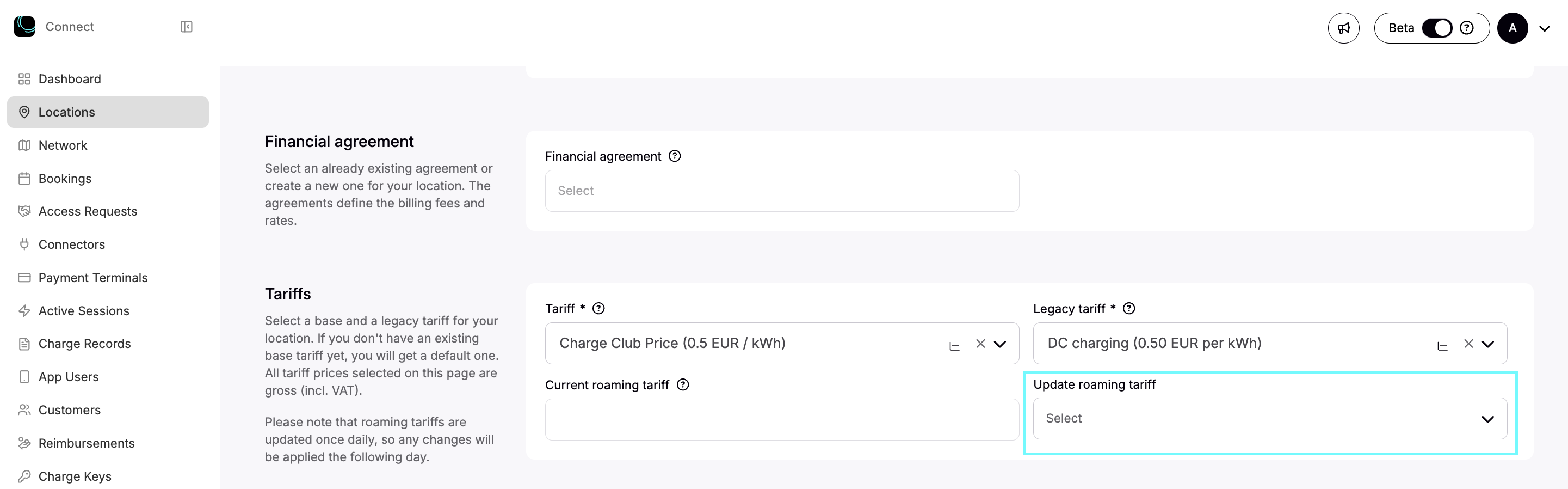
- Configure a roaming tariff
Roaming Tariffs
When roaming is enabled, charging sessions from other networks use a roaming tariff.
Key points about roaming tariffs:
- The roaming tariff is a separate price from your standard tariff
- It applies only to drivers from other eMSPs
- It must be inclusive of VAT
- It represents your price of selling electricity to the eMSP, including all fees and margins.
Typically, charge point operators set a higher roaming price than their internal or network price to:
- Offer better pricing to their own users
- Account for roaming-related costs
How to Apply a Roaming Tariff
- Click Update roaming tariff
- Select one of the available prices
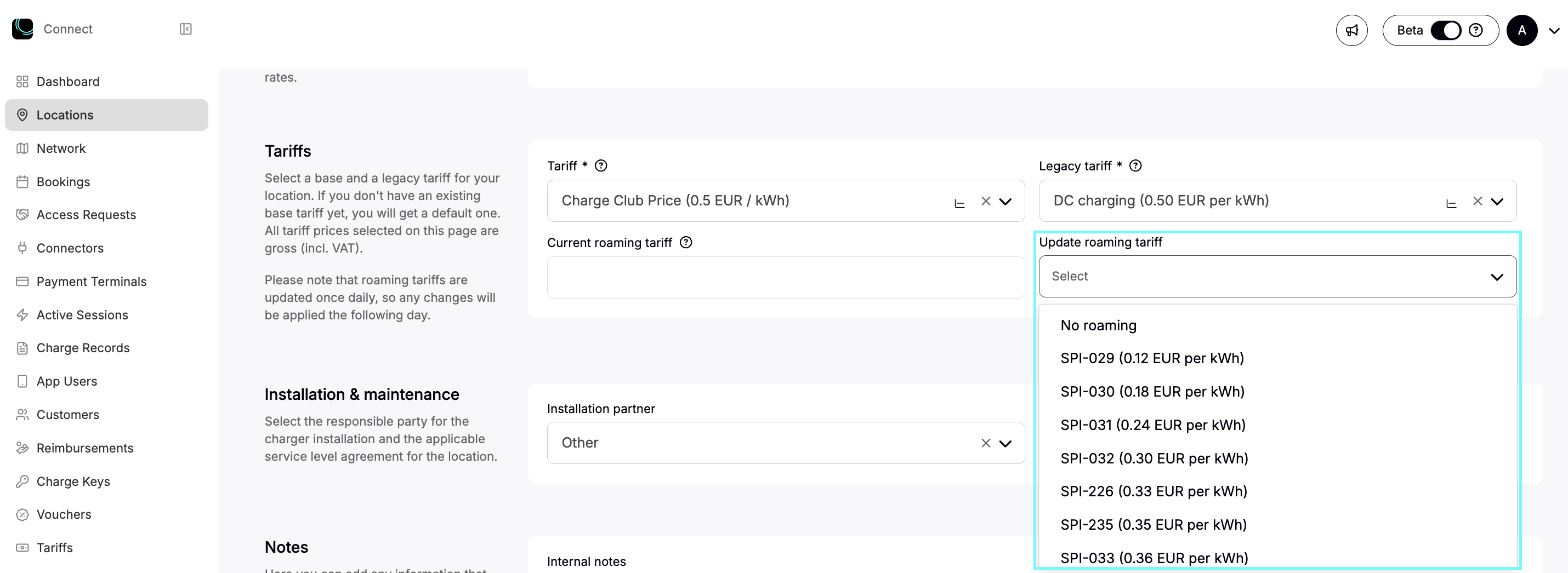
If no existing price matches your pricing strategy:
- Contact your Spirii representative
- Provide the required roaming price
- The tariff will be created and made available for selection
Important notes
- Fees cannot currently be added on top of a roaming tariff
- All intended fees and margins must be included in the roaming price itself
- Roaming prices are shared with partner eMSPs via API
- Price updates are synchronised every 24 hours - this timeline should be considered when changing roaming prices
Saving the Configuration
Once visibility, roaming, and pricing are configured, click Save to apply the changes
The location is now configured as public.
What Comes Next
After setting a location to public, you must:
Once chargers are connected, you can continue with:
- Truck-specific settings (e.g. heavy-duty vehicle bays)
- Booking schedules
- Operational configuration