
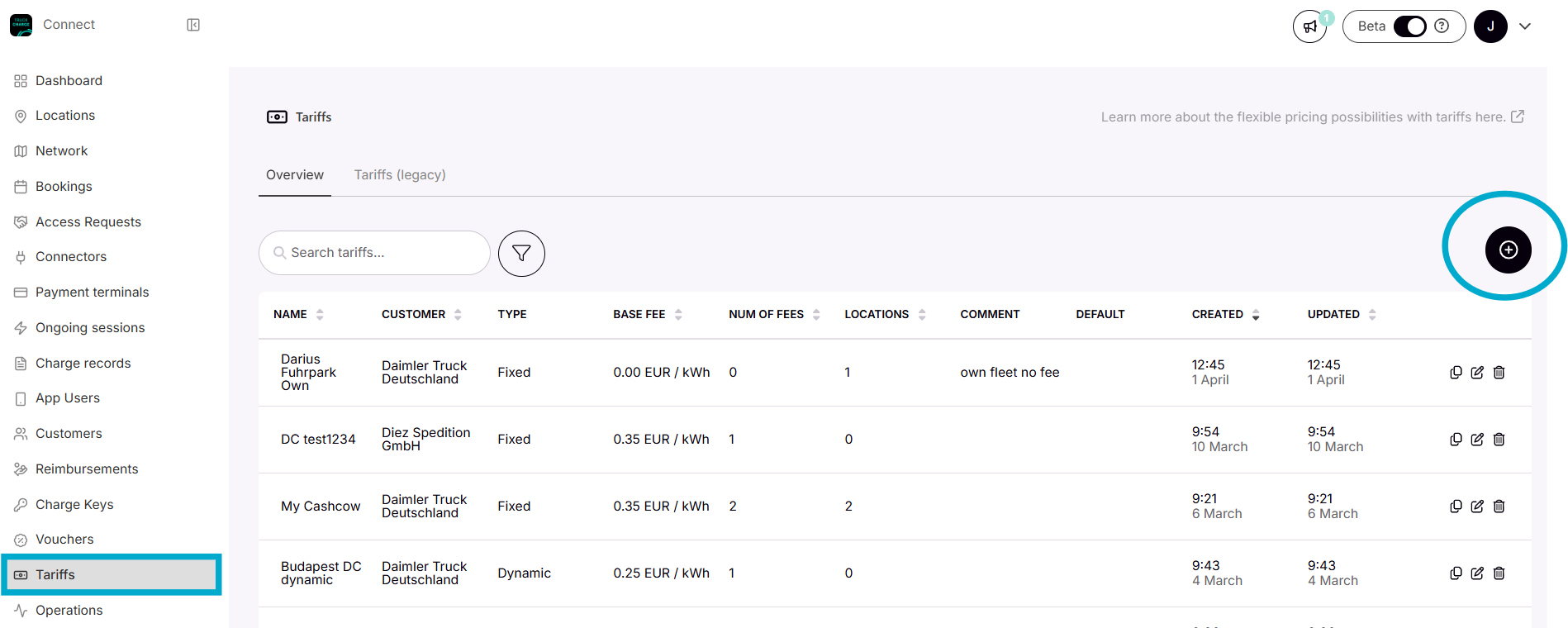
In TruckCharge Connect, navigate to the Tariffs menu:
Click on the "+" button to create a new tariff
- Define the general info of the tariff:
- Give the tariff a fitting name (e.g. “Public DC charging”)
- Select the currency you want to operate in (e.g. “EUR”)
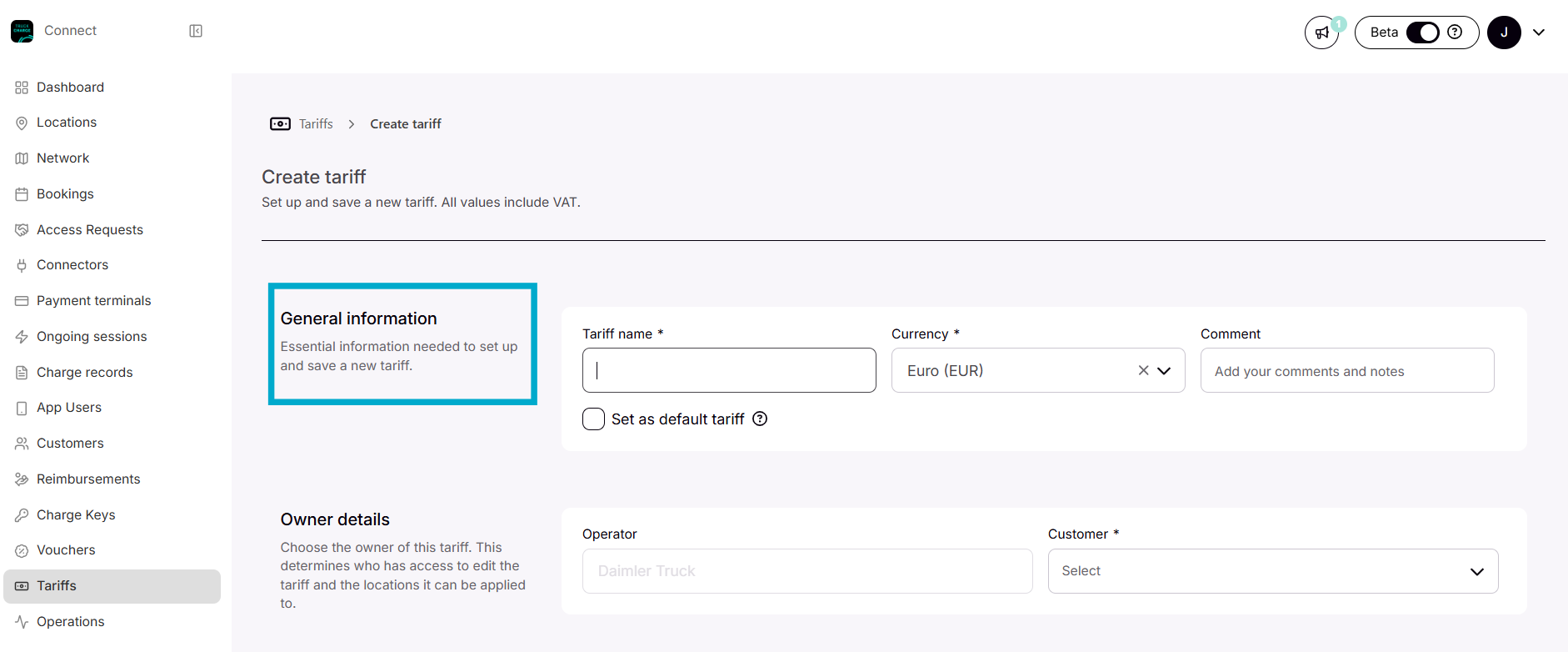 The owner details are pre-filled
- Define the type and base/minimum fee of the tariff:
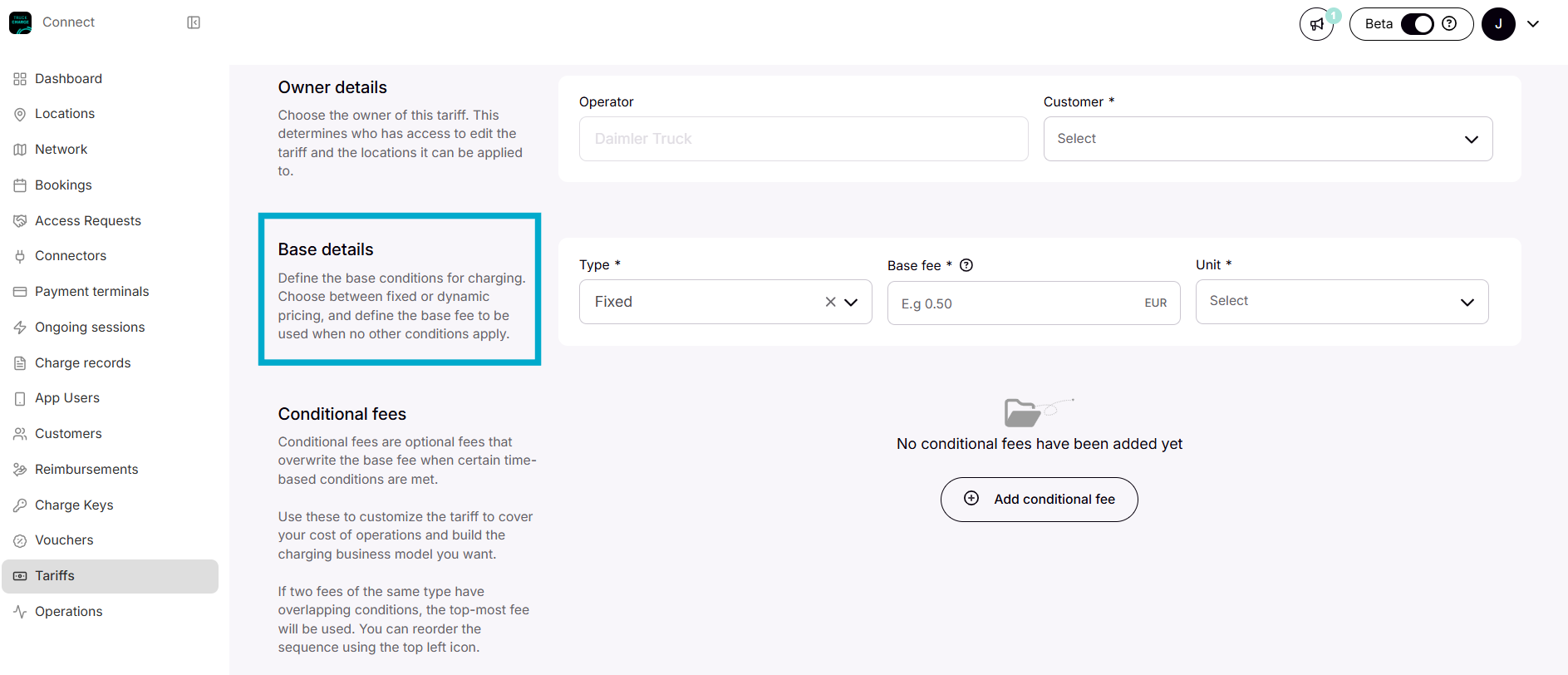
Select whether you want the base fee to be fixed or dynamic
|
Fixed tariff (fixed pricing) = the price is predefined and does not change based on electricity spot prices. In practice, you set a base fee (e.g., €/kWh, €/min, and/or a flat fee) and that fee is what applies whenever no conditional fees override it. Dynamic tariff (spot-price based pricing) = the price is based on an imported hourly spot price, and you configure what to charge on top of that spot price (a markup fee per kWh). 💡A “base fee” can still exist as a minimum/fallback if spot price data is missing or drops below a set level. |
-
Optionally, add one or more conditional fees to fit your use case. Conditional fees will replace the base fee when active.
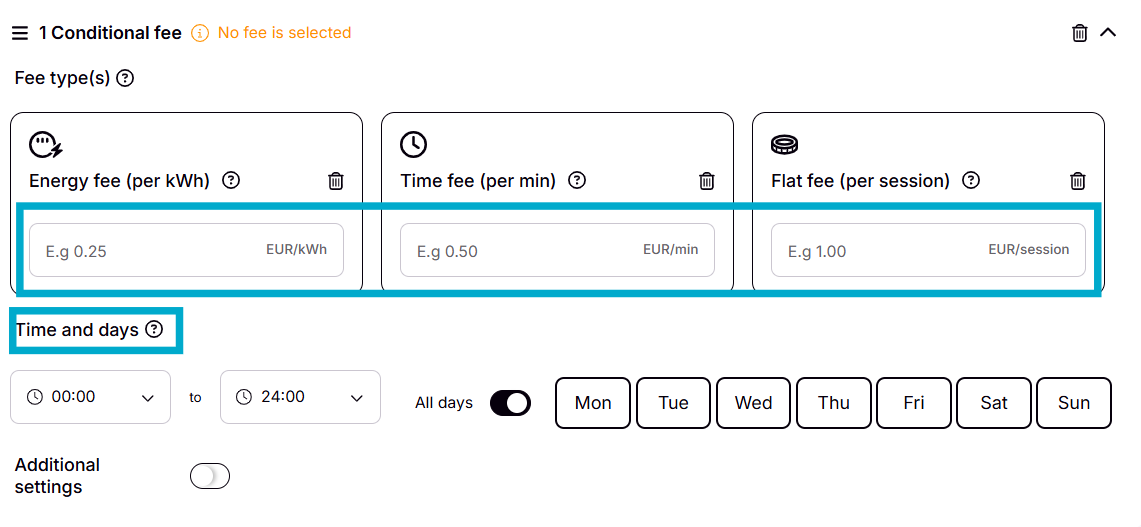
Select the fee type you need:
- Energy fee (per kWh) - A fee per kWh charged (if Dynamic, this acts as a markup on top of the hourly spot price)
- Time fee (per min) - A fee charged per minute of the session
- Flat fee (per session) - A one-time fee per session
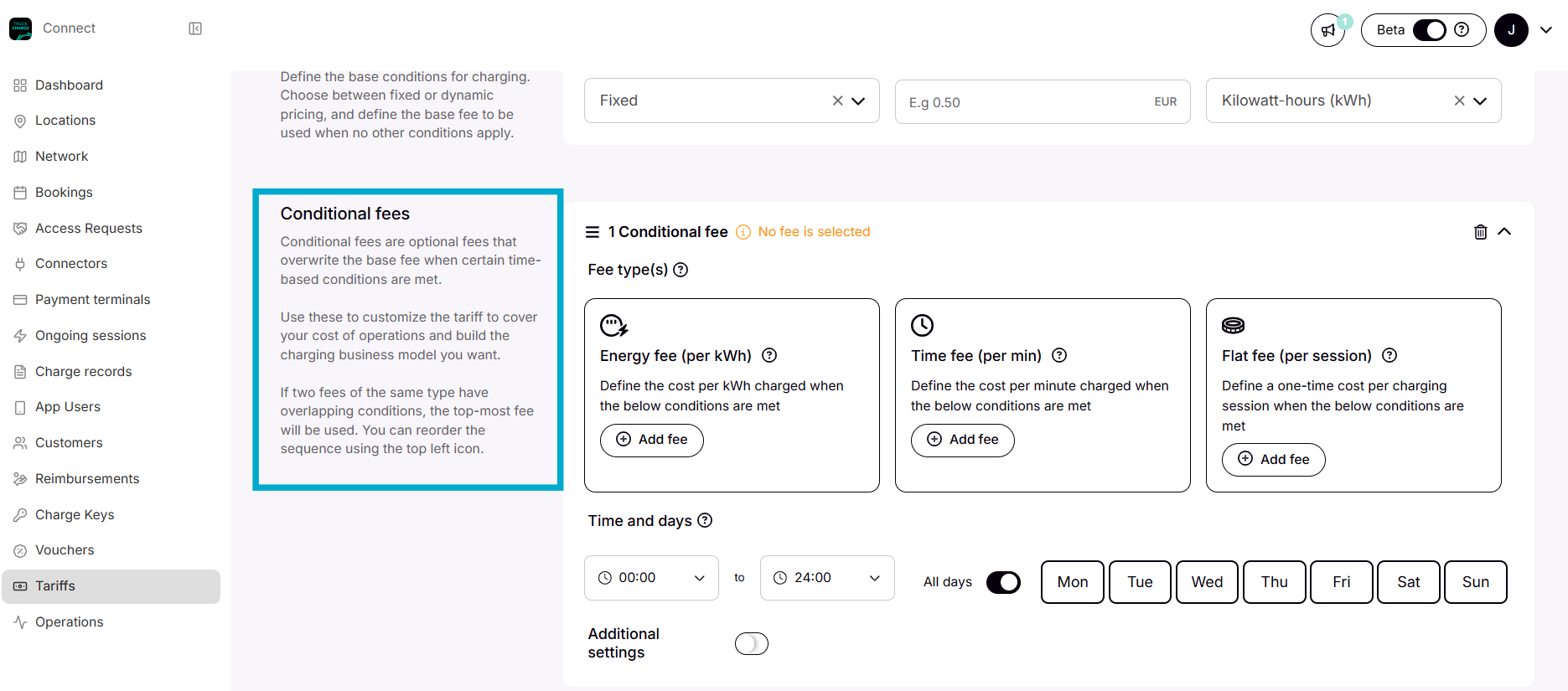
- Enter the amount this fee should cost
- Define if this fee should only be added on certain timeslots and specific days of the week. (leave blank if it should always be active)
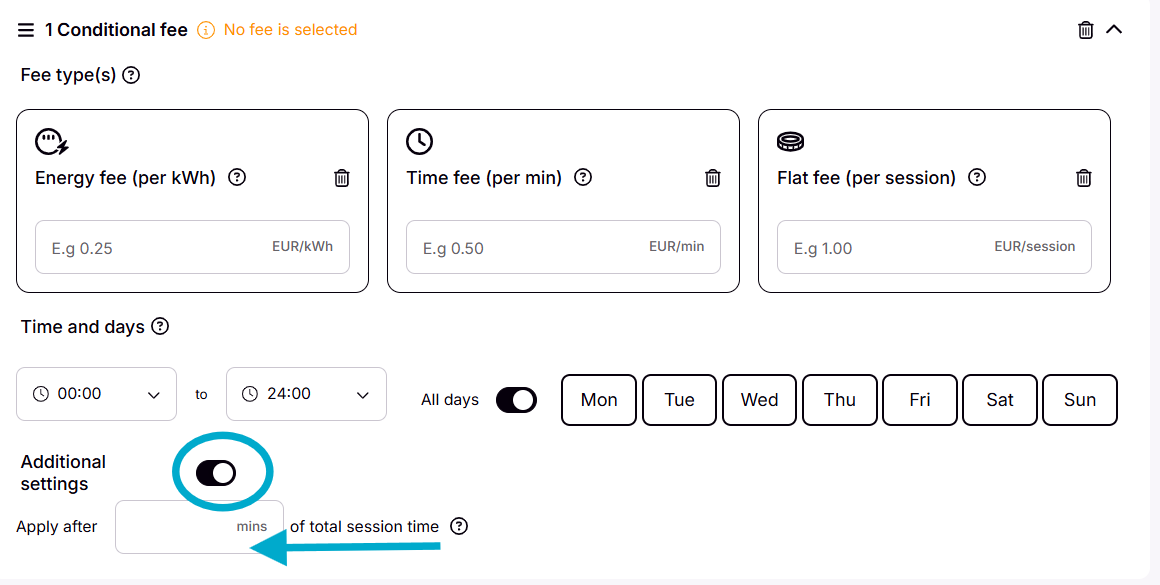
- Define if this fee should only be active after a certain amount of time of the total charging session (both active charging time and time just plugged in after the session)
Click "+ Add conditional fee", if you want to apply additional fees.
- Lastly, click Create on the bottom right to save the tariff.
Adding the tariff to your location(s)
For the tariff to take effect, you need to apply it to the relevant locations:
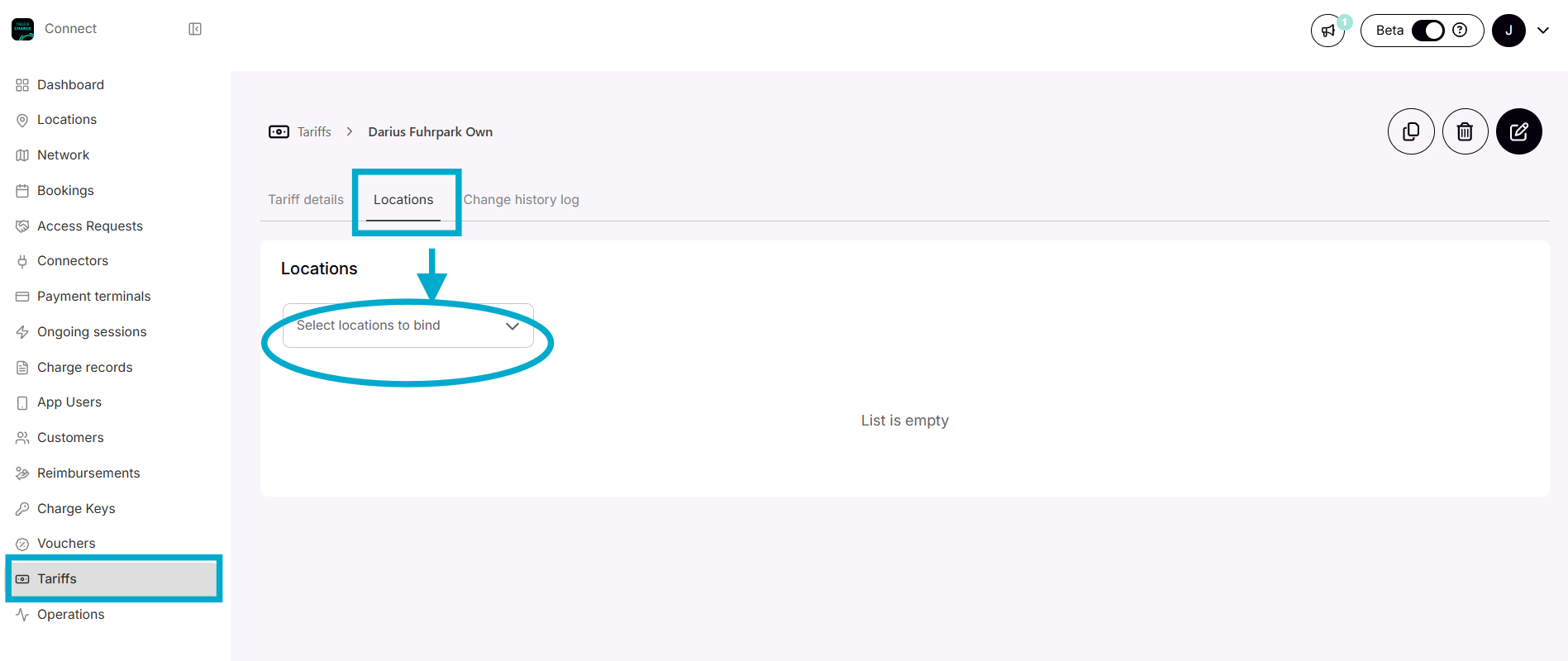
- On the tariff page, click on a specific tariff
- Navigate to the Locations tab
- Click on the Select locations to bind button and find the locations you want it to be attached to
- Confirm the warning
The tariff is now applied and displayed to end-users in the app.
Alternatively, you can do it directly on the Location:
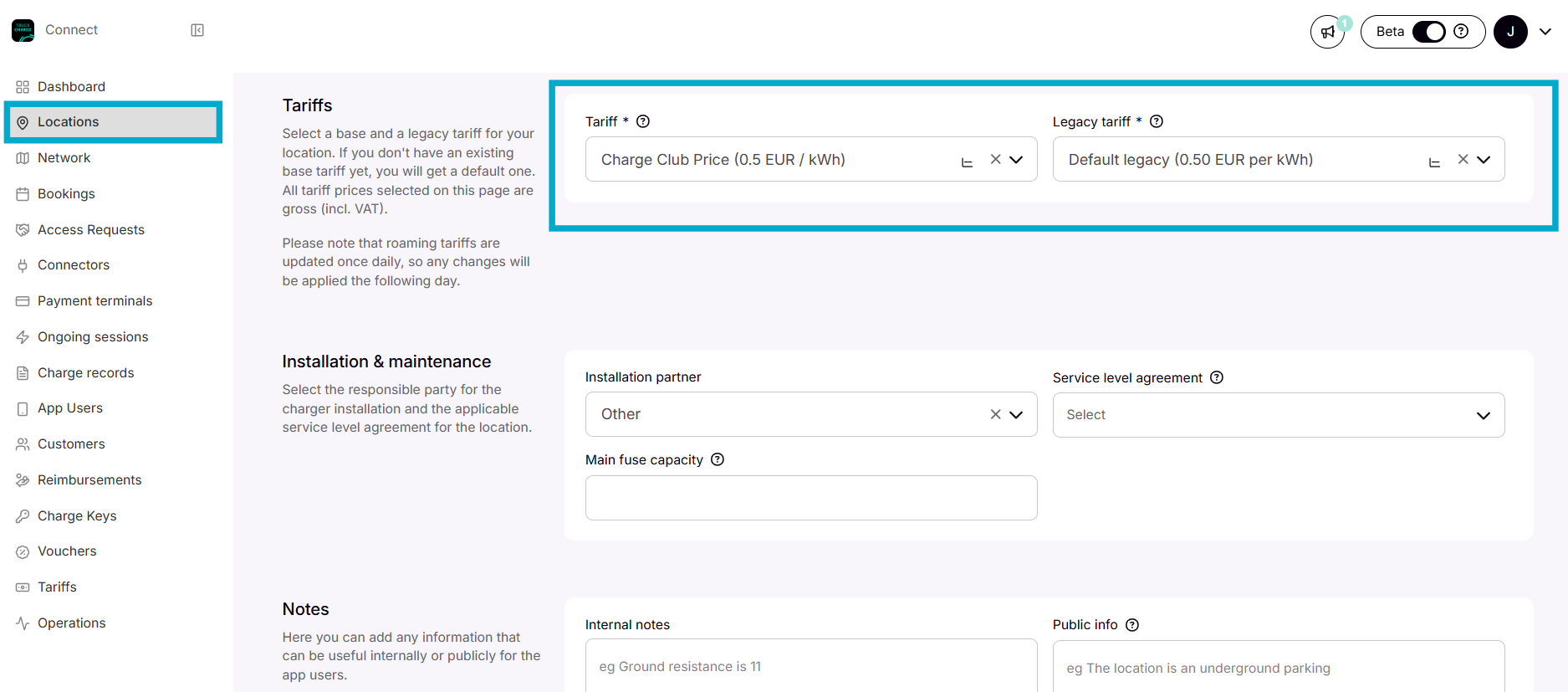
- Navigate to the Location via the menu
- On the location, click the Edit button in the top right corner
- Scroll down to the Tariff field and select the tariff in the dropdown
- Click Save
See Tariff Examples for TruckCharging here