
You can invite colleagues to TruckCharge Connect so they can help manage charging operations at your depot. This includes people responsible for daily operations, fleet planning, charger maintenance, or support.
This guide explains who to invite, how to invite them, and which roles to choose.
Who Should Have Access?
Invite anyone from your organisation who needs to:
- Monitor or manage chargers
- Support charging operations
- Plan charging for electric trucks
- Manage depot access, pricing, or users
Common examples include:
- Fleet managers
- Depot managers
- Operations or support staff
Where to Invite Team Members
- Log in to TruckCharge Connect
- Go to Profile
- Select Team Access
- Click Create User
How to Invite a User
When adding a new user, you’ll go through three simple steps:
1. Add Personal Details
Fill in:
- Email address
- First name
- Last name
⚠️ Important: Each email address can only be used once in the system.
If someone needs more than one role:
Assign both roles during the initial invite
If you must create a second user:
You may be able to use an email alias, depending on your email provider.
Example:
employee+operations@email.com
How to create aliases depends on your company’s email setup - your internal IT team can help with this.
2. Select Role(s)
Choose the role that best matches what the person needs to do in the platform.
- A user can have up to two roles
- If someone needs multiple permissions, assign both roles during the initial invite
You can always add a second role later by editing the user's permissions.
3. Send the Invitation Email
Make sure Send email invitation is enabled.
✅ If this is not selected, the user will not receive an invitation and won’t know they’ve been given access.
Click Create to send the invite.
Understanding Roles
If you’re unsure which role to assign, click the ➕ (plus icon) in the invite window to view a detailed role comparison table.
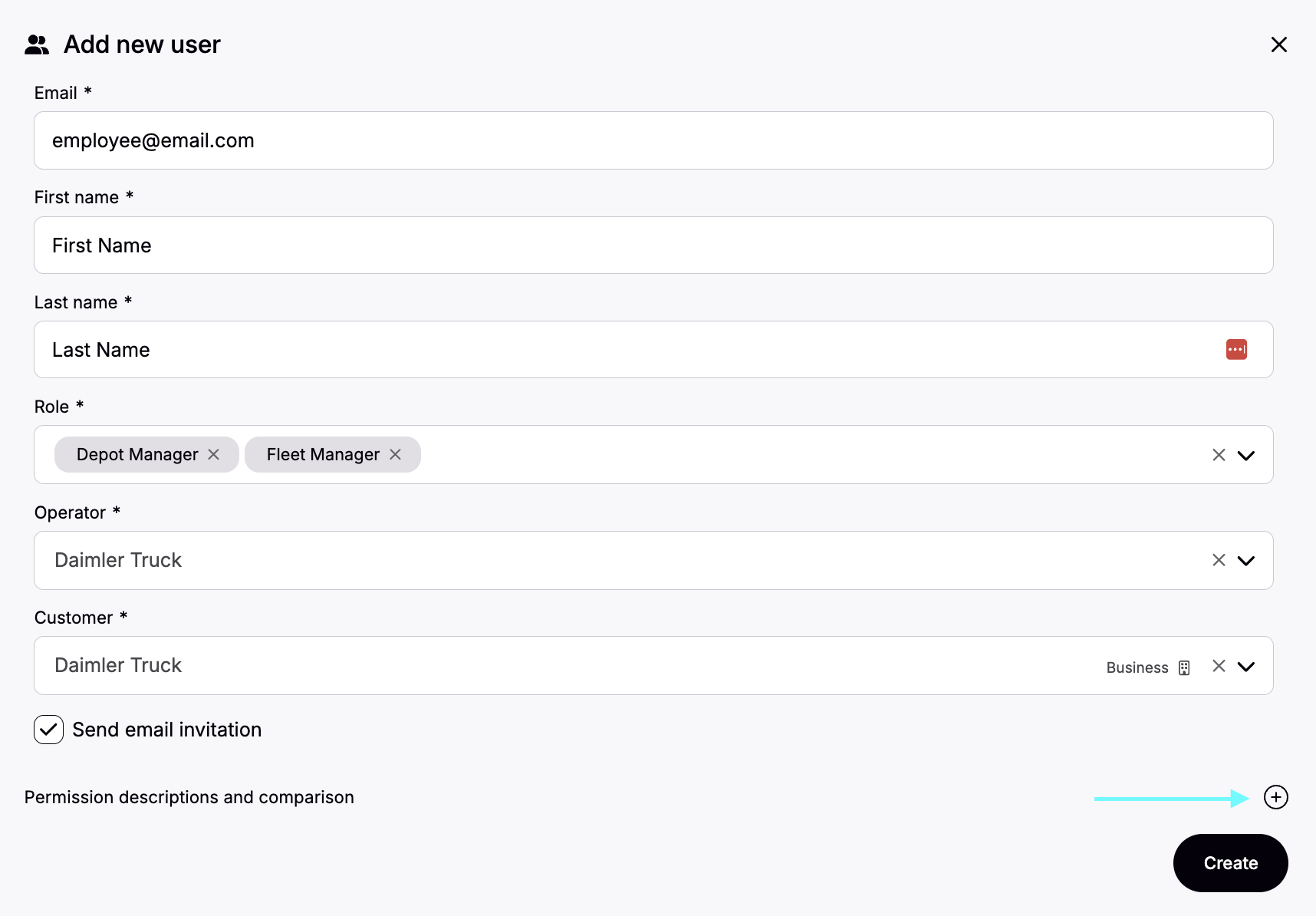
Below is a simplified overview of the most common roles for depots.
Operator
Best for: Technical or operational staff
- Full access to edit all data
- Create and manage sites and chargers
- Manage connectors and perform remote actions (e.g. resets)
- View charger status and logs
- Manage charge keys and vouchers
- Invite users
🚫 Does not have access to the charge map
Fleet Manager
Best for: Fleet and transport planners
- Access to the charge map
- Find chargers for electric trucks
- Manage charge keys and vouchers
- Request access to charging sites of other depots
🚫 Cannot manage chargers or perform actions related to the charging infrastructure
Dual Role: Operator + Fleet Manager
Best for: Power users or smaller teams
- Full network management access
- Access to the charge map
- Can create and manage chargers
- Can plan and manage charging for fleets
✅ This is the most flexible setup if someone needs broad access.
Depot Manager
Best for: On-site depot responsibility
- View and edit charge boxes and connectors
- Limited to depot-level configuration
🚫 No access to advanced network or fleet features
What Happens Next?
- The invited user receives an email titled “Welcome to Connect”
- They accept the invite
- They set a password and complete login
- They can start using the platform immediately
(See Your First Login if you want to understand what they’ll experience.)
Best Practices
- Invite users with the right role from the start
- Use dual roles instead of duplicate accounts where possible
- Only give access to people who actively work with charging operations
- Review access regularly as responsibilities change